Here's some points for helping to fix LW if it's not working properly. Close LW before you try these things.
Try these things one by one until one works:
1. (LimeWire 5 must use Java 1.6 (also known as 6)! Make sure your Java version is up to date with the most recent Java Offline version.) (
Direct Java 1.6 offline download link.)
. (Click to see sample instructions). We recommend you right-click the Java installer & choose
Run as Administrator. It is very important to do this for Windows 7 or later & Vista users should also do.)
 Two Java issues affecting only LimeWire 5 versions: . . . 1.
 Error saying Java version needs to be 6 or higher. Java 1.7 (also known as Java 7) presently does not work directly with LW5 or LPE (LW4 is unaffected.) Not normally recommended but try reinstalling Java 1.6 alongside if you need Java 1.7 for other reasons (such as Java SDK), else just revert back to Java 1.6 by uninstalling Java 1.7. You can use the Java Control Panel to set Java 1.6 as the default so LW will use this version.
Java Control Panel sample image. On Windows XP and earlier, LW 5 and LPE will not work if Java 1.7 is installed.
* A workaround solution has been found for the Java 7 and LW 5 versions, see
http://www.gnutellaforums.com/connec...tml#post368753 . . . 2. 64-Bit Java 7 Update problems:
Quote:
Originally Posted by soubeagi  ... as long as the 32bit version is installed last (after the 64bit version), everything seems to go back to normal. |
The newest update of Java 7: the 32-bit Java should be updated last. Otherwise a problem will occur with (a) java error when opening LW, (b) LW changing it's download location and location of settings.
. Direct download link to the Offline installer for 32-bit Java 7 "
here".
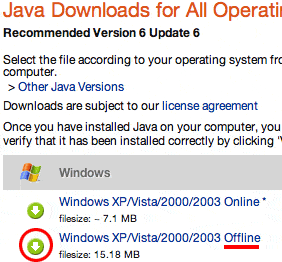
(b) Always install Java using the OFFLINE installer (click to see sample instructions). 
Sample image below of downloading the
OFFLINE Java installer version which is always the larger download option; in the example it is around 15 MB in size (Offline Java installer is 'always' safer & more reliable to install due to issues with Java website and with possible issues with getting all the information immediately during online installation, thus offline is always best option because you are installing the information already on your computer, not over the internet)
J2SE Runtime Environment (JRE):
For Java 1.6:
 (c) * For a clean installation of BOTH LimeWire & Java see Clean install of both LW & Java & deleting your LW preferences folder before the installation is also recommended. (Find your LW 4 or 5 installers from here LimeWire installers for Windows.) Vista and Windows 7 or later users should set both their Java and LW installers to 'Run as Administrator' when re-installing. 2. Deleting the LW Preferences folder:
**Before you delete LW's preferences folder, please read post #5 of this thread** (at very bottom of page; only applies to users of LW 5 & 4.18!)
Quick way for Windows XP users: Click on Start > click on Run > type %appdata% into the text field > ok.
You should now see a lot of folders - find the one named LimeWire... that is your preferences folder. That is the folder that you need to delete.
More detailed way for Windows XP users:
(a) First, make sure LimeWire is closed! * New name & location for preferences folder for LW 4.10 or later: For LW 4.10 or later:
(b) Delete the LW Preferences folder called
limewire (whilst LW is CLOSED!) found here:
C:\Documents and Settings\*yourusername*\Application Data\limewire ( <- Applicable for Windows up to XP only)
Note: The
Application Data folder is
HIDDEN. In order to find & access it, you'll need to turn on the show hidden files & folders option. See sample image in post #4 lower down on page to see how to find & delete the limewire preferences folder
New LW Prefs name & location sample image (click on blue link). New users of LW will find their preferences here.
For those who have updated from LW 4.10 or earlier, you will find your preferences here after having deleted your preferences in the previous location discussed in Step 2 above! (In the example image shown, the LW program has been installed on a different partition. This makes no difference to deleting of LW preferences folder location!) Also, you can turn off the show hidden files & folder option after completing the process.
VISTA and
Windows 7 or 8 users find instructions here:
LimeWire Pref Folder in Vista and Windows 7 or 8 . (Remember LW must be closed at that time!)
Quick way for Vista, Windows 7 or 8 users: Click on the Start button > type %appdata% into the text field > ok. You should now see a lot of folders - find the one named LimeWire ... that is your preferences folder. That is the folder that you need to delete. 3. Compatibility mode: Right-clicking the Limewire icon and going to properties and
change compatability setting to Windows 2000. (but only if you're using Windows 2000 or later.) Somebody reported changing to Windows NT compatibility fixed their problem despite not using that operating system version.
(Example image below was Windows XP; this can be done via choosing the LW shortcut.) Vista users can try setting to Windows XP SP2 compatibility (but should also set to admin., see point #4 below).
'Compatibility Mode' using Windows XP Sample image (click on this link) Windows 7 Compatibility options: Right-click LW short-cut on desktop & choose Properties. Then Compatibility tab & select a mode that you can try & check if it works for your LW. (Sample image below)
 (Click to see larger view) 4. Run as Administrator:
 Right-click on the Limewire icon on the desktop and click on
Run as. Then it should come up showing the current user and then switch it over to
Administrator. (but 'only' if you're the admin of your comp.!) ->
'Run as Administrator' using Windows XP Sample image (click on this link) Vista & Windows 7 or later: . . . . . . . . . . . . . .  (Click to see larger view)