LW preferences folder is in same location for both Vista & Windows 7 and Windows 8. For Vista instructions with samples see lower down in this post.
Windows 10
Easiest method is START menu and type or copy-paste in %appdata% and bingo, you can open the appdata folder and find the LimeWire or any other program settings folder. As always make sure the program is closed and not sitting in the Tray before deleting or making changes to the program settings folder.
 Windows 8
First CLOSE the LimeWire program & make sure it is not in the Tray.
Search > type %appdata% into the text field.
Roaming will appear listed below the search box, click on this listing and the Roaming folder will open on Desktop. Find a folder named LimeWire. Delete that LimeWire folder if that is your objective.
Click here to see Windows 8 search sample image.
Second technique is: Go to Search, click on programs and type Run into the search box. Open Run and type in %appdata%
More information:
Back up your Downloads file before deleting LW's preferences folder about retaining previous incomplete files.
Windows 7
First CLOSE the LimeWire program & make sure it is not in the Tray. In order to find the preference folder in Windows 7 you will first have to enable show hidden files and folders. You can do this by clicking on Start menu -> User Name -> Organize, in the drop down window choose Folder and search Options, in the next drop down window choose View and put a tick mark in the Show hidden files and folders. Then click apply to folders. (Sample image below which uses Administrator as example username)
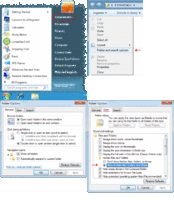 (Click to see larger view)
Once that is done the AppData folder will show up click on it, then choose Roaming. In the window that shows up right click on the LimeWire folder. If you are deleting the LimeWire preferences folder then … First, remove or copy-paste the Downloads (downloads.dat) file inside it & place it somewhere else safe for now.
Then Right-click the LimeWire folder & choose Delete. (Sample image below which uses Administrator as example username)
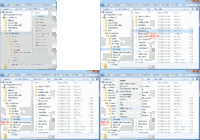 (Click to see larger view) * Note: LimeWire MUST be CLOSED if you are deleting the LimeWire preferences folder Or replacing the Gnutella.net file Or returning the downloads.dat file inside it!
More information:
Back up your Downloads file before deleting LW's preferences folder about retaining previous incomplete files.
Directory location: C:\Documents and Settings\*yourusername*\AppData\Roaming\Limewire Quick way for Windows 7 users: Click on the Start button > type %appdata% into the text field > ok. You should now see a lot of folders - find the one named LimeWire ... that is your preferences folder. VISTA
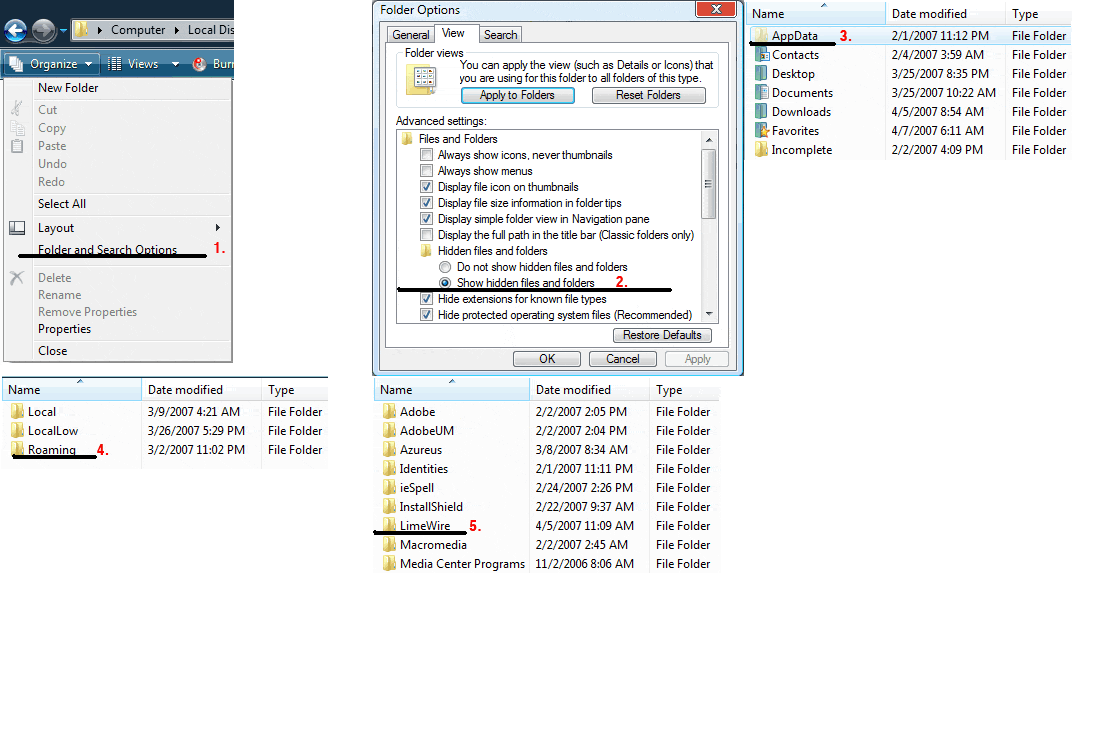
First CLOSE the LimeWire program & make sure it is not in the Tray. In order to find the preference folder in Vista you will first have to enable show hidden files and folders. You can do this by clicking on Start/User Name
(Attachment #1)/Organize/ in the drop down window choose Folder and search Options, in the next drop down window choose View and put a tick mark in the Show hidden files and folders. Then click apply to folders.
(Attachment #2)
Once that is done the AppData folder will show up click on it, then choose Roaming. In the window that shows up right click on the LimeWire file and delete it.
(Attachment #3)
Edit:
C:\Documents and Settings\*yourusername*\AppData\Roaming\Limewire
The
AppData folder is a
HIDDEN folder so you need to change option to show all hidden files & folders before you use the
Vista search for it as described by Grandpa. (GiF animated sample image added below to help show you.) You can also see birdy's link in post #2 below for another tutorial on how to show Hidden files & folders in Vista.
* Note: you may wish to save your Downloads.dat file, see
Back up your Downloads file before deleting LW's preferences folder about retaining previous incomplete files.
 .
.