
|
| |||||||
| Register | FAQ | The Twelve Commandments | Members List | Calendar | Arcade | Find the Best VPN | Today's Posts | Search |
| Windows Problems with installing LimeWire or WireShare for Windows users |
| Welcome To Gnutella Forums You are currently viewing our boards as a guest which gives you limited access to view most discussions and access our other features. By joining our free community you will have access to post topics, communicate privately with other members (PM), respond to polls, upload content, fun aspects such as the image caption contest and play in the arcade, and access many other special features after your registration and email confirmation. Registration is fast, simple and absolutely free so please, join our community today! (click here) (Note: we use Yandex mail server so make sure yandex is not on your email filter or blocklist.) If you have any problems with the Gnutella Forum registration process or your Gnutella Forum account login, please contact us (this is not for program use questions.) Your email address must be legitimate and verified before becoming a full member of the forums. Please be sure to disable any spam filters you may have for our website, so that email messages can reach you. Note: Any other issue with registration, etc., send a Personal Message (PM) to one of the active Administrators: Lord of the Rings or Birdy. Once registered but before posting, members MUST READ the FORUM RULES (click here) and members should include System details - help us to help you (click on blue link) in their posts if their problem relates to using the program. Whilst forum helpers are happy to help where they can, without these system details your post might be ignored. And wise to read How to create a New Thread Thank you If you are a Spammer click here. This is not a business advertising forum, all member profiles with business advertising will be banned, all their posts removed. Spamming is illegal in many countries of the world. Guests and search engines cannot view member profiles. Deutsch? Español? Français? Nederlands? Hilfe in Deutsch, Ayuda en español, Aide en français et LimeWire en français, Hulp in het Nederlands Forum Rules Support Forums Before you post to one of the specific Client Help and Support Conferences in Gnutella Client Forums please look through other threads and Stickies that may answer your questions. Most problems are not new. The Search function is most useful. Also the red Stickies have answers to the most commonly asked questions. (over 90 percent). If your problem is not resolved by a search of the forums, please take the next step and post in the appropriate forum. There are many members who will be glad to help. If you are new to the world of file sharing please do not be shy! Everyone was ‘new’ when they first started. When posting, please include details for: Your Operating System ....... Your version of your Gnutella Client (* this is important for helping solve problems) ....... Your Internet connection (56K, Cable, DSL) ....... The exact error message, if one pops up Any other relevant information that you think may help ....... Try to make your post descriptive, specific, and clear so members can quickly and efficiently help you. To aid helpers in solving download/upload problems, LimeWire and Frostwire users must specify whether they are downloading a torrent file or a file from the Gnutella network. Members need to supply these details >>> System details - help us to help you (click on blue link) Moderators There are senior members on the forums who serve as Moderators. These volunteers keep the board organized and moving. Moderators are authorized to: (in order of increasing severity) Move posts to the correct forums. Many times, members post in the wrong forum. These off-topic posts may impede the normal operation of the forum. Edit posts. Moderators will edit posts that are offensive or break any of the House Rules. Delete posts. Posts that cannot be edited to comply with the House Rules will be deleted. Restrict members. This is one of the last punishments before a member is banned. Restrictions may include placing all new posts in a moderation queue or temporarily banning the offender. Ban members. The most severe punishment. Three or more moderators or administrators must agree to the ban for this action to occur. Banning is reserved for very severe offenses and members who, after many warnings, fail to comply with the House Rules. Banning is permanent. Bans cannot be removed by the moderators and probably won't be removed by the administration. The Rules 1. Warez, copyright violation, or any other illegal activity may NOT be linked or expressed in any form. Topics discussing techniques for violating these laws and messages containing locations of web sites or other servers hosting illegal content will be silently removed. Multiple offenses will result in consequences. File names are not required to discuss your issues. If filenames are copyright then do not belong on these forums & will be edited out or post removed. Picture sample attachments in posts must not include copyright infringement. 2. Spamming and excessive advertising will not be tolerated. Commercial advertising is not allowed in any form, including using in signatures. 3. There will be no excessive use of profanity in any forum. 4. There will be no racial, ethnic, or gender based insults, or any other personal attacks. 5. Pictures may be attached to posts and signatures if they are not sexually explicit or offensive. Picture sample attachments in posts must not include copyright infringement. 6. Remember to post in the correct forum. Take your time to look at other threads and see where your post will go. If your post is placed in the wrong forum it will be moved by a moderator. There are specific Gnutella Client sections for LimeWire, Phex, FrostWire, BearShare, Gnucleus, Morpheus, and many more. Please choose the correct section for your problem. 7. If you see a post in the wrong forum or in violation of the House Rules, please contact a moderator via Private Message or the "Report this post to a moderator" link at the bottom of every post. Please do not respond directly to the member - a moderator will do what is required. 8. Any impersonation of a forum member in any mode of communication is strictly prohibited and will result in banning. 9. Multiple copies of the same post will not be tolerated. Post your question, comment, or complaint only once. There is no need to express yourself more than once. Duplicate posts will be deleted with little or no warning. Keep in mind a forum censor may temporarily automatically hold up your post, if you do not see your post, do not post again, it will be dealt with by a moderator within a reasonable time. Authors of multiple copies of same post may be dealt with by moderators within their discrete judgment at the time which may result in warning or infraction points, depending on severity as adjudged by the moderators online. 10. Posts should have descriptive topics. Vague titles such as "Help!", "Why?", and the like may not get enough attention to the contents. 11. Do not divulge anyone's personal information in the forum, not even your own. This includes e-mail addresses, IP addresses, age, house address, and any other distinguishing information. Don´t use eMail addresses in your nick. Reiterating, do not post your email address in posts. This is for your own protection. 12. Signatures may be used as long as they are not offensive or sexually explicit or used for commercial advertising. Commercial weblinks cannot be used under any circumstances and will result in an immediate ban. 13. Dual accounts are not allowed. Cannot explain this more simply. Attempts to set up dual accounts will most likely result in a banning of all forum accounts. 14. Video links may only be posted after you have a tally of two forum posts. Video link posting with less than a 2 post tally are considered as spam. Video link posting with less than a 2 post tally are considered as spam. 15. Failure to show that you have read the forum rules may result in forum rules breach infraction points or warnings awarded against you which may later total up to an automatic temporary or permanent ban. Supplying system details is a prerequisite in most cases, particularly with connection or installation issues. Violation of any of these rules will bring consequences, determined on a case-by-case basis. Thank You! Thanks for taking the time to read these forum guidelines. We hope your visit is helpful and mutually beneficial to the entire community. |
 |
| | LinkBack | Thread Tools | Display Modes |
 January 17th, 2005
| ||||
| ||||
 Fixes for Limewire when LW isn't operating as it should Fixes for Limewire when LW isn't operating as it should Here's some points for helping to fix LW if it's not working properly. Close LW before you try these things. Try these things one by one until one works: 1. (LimeWire 5 must use Java 1.6 (also known as 6)! Make sure your Java version is up to date with the most recent Java Offline version.) (Direct Java 1.6 offline download link.) . (Click to see sample instructions). We recommend you right-click the Java installer & choose Run as Administrator. It is very important to do this for Windows 7 or later & Vista users should also do.)  Two Java issues affecting only LimeWire 5 versions: . . . 1. Error saying Java version needs to be 6 or higher. Java 1.7 (also known as Java 7) presently does not work directly with LW5 or LPE (LW4 is unaffected.) Not normally recommended but try reinstalling Java 1.6 alongside if you need Java 1.7 for other reasons (such as Java SDK), else just revert back to Java 1.6 by uninstalling Java 1.7. You can use the Java Control Panel to set Java 1.6 as the default so LW will use this version. Java Control Panel sample image. On Windows XP and earlier, LW 5 and LPE will not work if Java 1.7 is installed. * A workaround solution has been found for the Java 7 and LW 5 versions, see http://www.gnutellaforums.com/connec...tml#post368753 . . . 2. 64-Bit Java 7 Update problems: Quote:
(b) Always install Java using the OFFLINE installer (click to see sample instructions).  Sample image below of downloading the OFFLINE Java installer version which is always the larger download option; in the example it is around 15 MB in size (Offline Java installer is 'always' safer & more reliable to install due to issues with Java website and with possible issues with getting all the information immediately during online installation, thus offline is always best option because you are installing the information already on your computer, not over the internet) J2SE Runtime Environment (JRE): For Java 1.6: 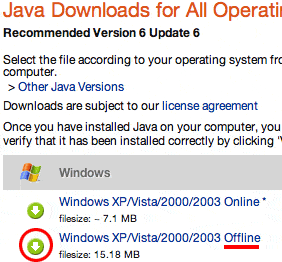 (c) * For a clean installation of BOTH LimeWire & Java see Clean install of both LW & Java & deleting your LW preferences folder before the installation is also recommended. (Find your LW 4 or 5 installers from here LimeWire installers for Windows.) Vista and Windows 7 or later users should set both their Java and LW installers to 'Run as Administrator' when re-installing. 2. Deleting the LW Preferences folder: **Before you delete LW's preferences folder, please read post #5 of this thread** (at very bottom of page; only applies to users of LW 5 & 4.18!) Quick way for Windows XP users: Click on Start > click on Run > type %appdata% into the text field > ok. You should now see a lot of folders - find the one named LimeWire... that is your preferences folder. That is the folder that you need to delete. More detailed way for Windows XP users: (a) First, make sure LimeWire is closed! * New name & location for preferences folder for LW 4.10 or later: For LW 4.10 or later: (b) Delete the LW Preferences folder called limewire (whilst LW is CLOSED!) found here: C:\Documents and Settings\*yourusername*\Application Data\limewire ( <- Applicable for Windows up to XP only) Note: The Application Data folder is HIDDEN. In order to find & access it, you'll need to turn on the show hidden files & folders option. See sample image in post #4 lower down on page to see how to find & delete the limewire preferences folder New LW Prefs name & location sample image (click on blue link). New users of LW will find their preferences here. For those who have updated from LW 4.10 or earlier, you will find your preferences here after having deleted your preferences in the previous location discussed in Step 2 above! (In the example image shown, the LW program has been installed on a different partition. This makes no difference to deleting of LW preferences folder location!) Also, you can turn off the show hidden files & folder option after completing the process. VISTA and Windows 7 or 8 users find instructions here: LimeWire Pref Folder in Vista and Windows 7 or 8 . (Remember LW must be closed at that time!) Quick way for Vista, Windows 7 or 8 users: Click on the Start button > type %appdata% into the text field > ok. You should now see a lot of folders - find the one named LimeWire ... that is your preferences folder. That is the folder that you need to delete. 3. Compatibility mode: Right-clicking the Limewire icon and going to properties and change compatability setting to Windows 2000. (but only if you're using Windows 2000 or later.) Somebody reported changing to Windows NT compatibility fixed their problem despite not using that operating system version. (Example image below was Windows XP; this can be done via choosing the LW shortcut.) Vista users can try setting to Windows XP SP2 compatibility (but should also set to admin., see point #4 below). 'Compatibility Mode' using Windows XP Sample image (click on this link) Windows 7 Compatibility options: Right-click LW short-cut on desktop & choose Properties. Then Compatibility tab & select a mode that you can try & check if it works for your LW. (Sample image below) 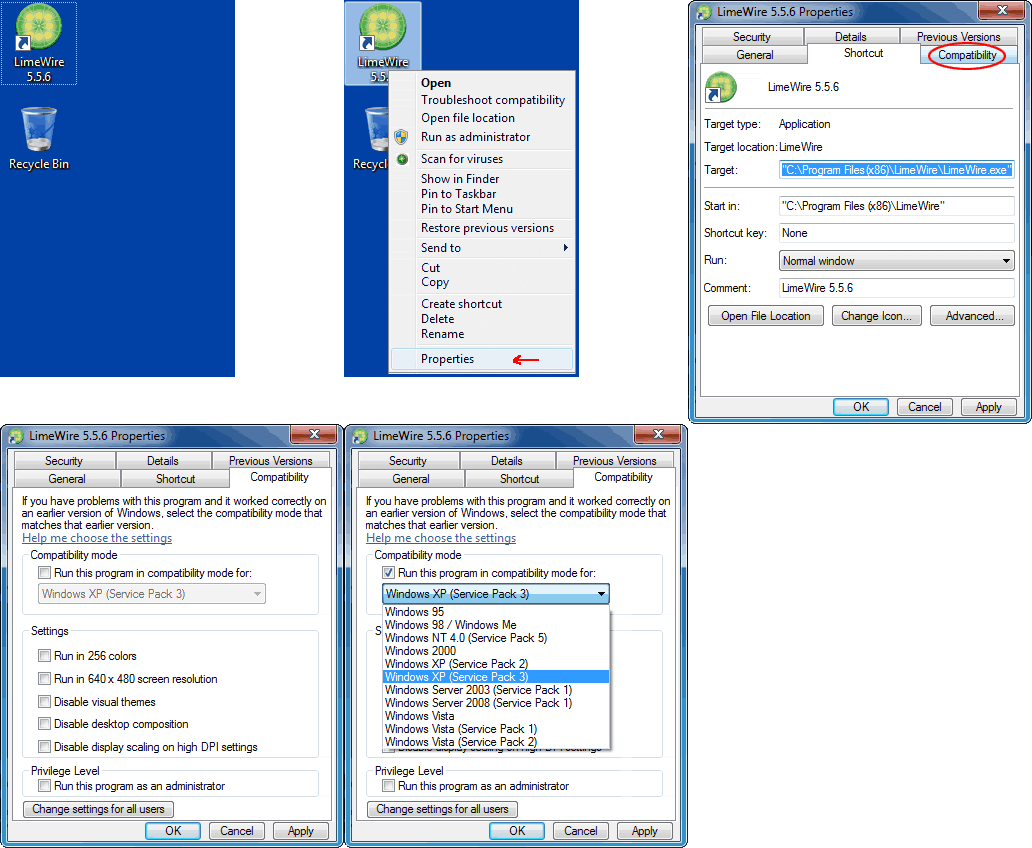 (Click to see larger view) (Click to see larger view)4. Run as Administrator: Right-click on the Limewire icon on the desktop and click on Run as. Then it should come up showing the current user and then switch it over to Administrator. (but 'only' if you're the admin of your comp.!) -> 'Run as Administrator' using Windows XP Sample image (click on this link) Vista & Windows 7 or later: . . . . . . . . . . . . . . 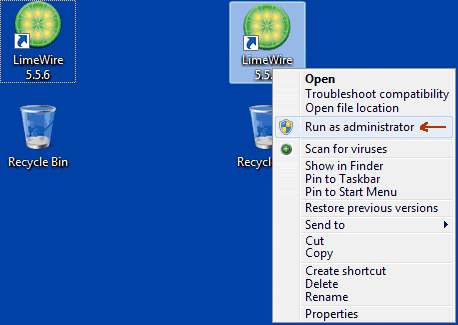 (Click to see larger view) (Click to see larger view) Last edited by Lord of the Rings; September 19th, 2011 at 09:09 AM. Reason: Adding info for LW 5 users. Update about Java 1.7 beta |
|
January 21st, 2005
| ||||
| ||||
 (Old instructions part 1) (Old instructions part 1) Finding your LW Preferences Folder called .limewire _ (Old instructions) (Applicable only to LW 4.10 or earlier or users who started with such versions deleting prefs for first time. If you started using LimeWire with LW 4.11 or later version after March 2006, then see post #4 at near bottom of thread.) For those of you who are not computer savvy & have problems finding your way around your computer. I have provided an example of an alternative way of finding your Limewire (LW) Preferences folder. Remember this should be done whilst LW is closed! This includes two ways of deleting the LW preferences folder within the one animation. The 1st deletion method is the better. (i) Bring up search function as shown in sample image below. Then proceed to (ii) in post #3 below for further instructions & samples. 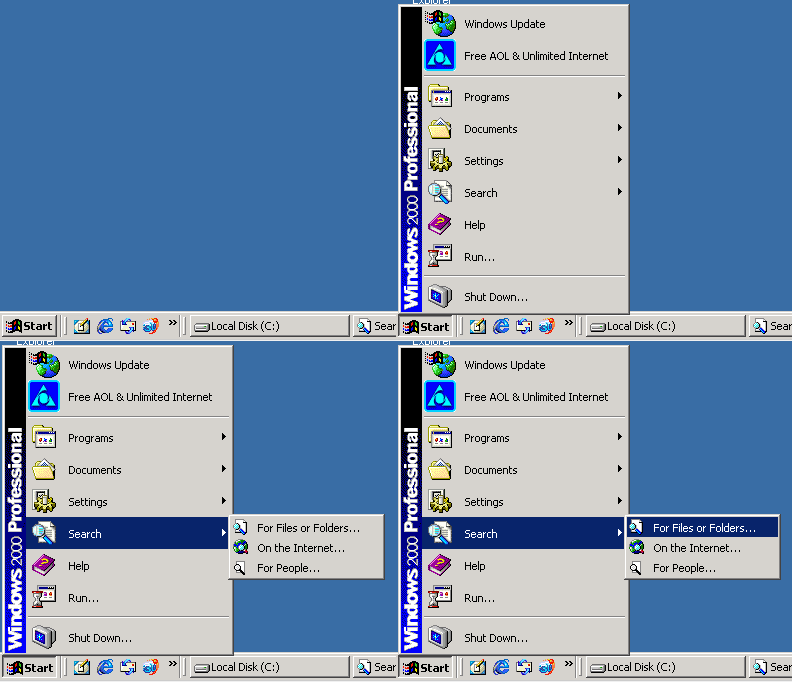 (click to see older instructions) (click to see older instructions). Last edited by Lord of the Rings; June 26th, 2010 at 08:27 AM. |
|
January 21st, 2005
| ||||
| ||||
| (Old instructions part 2) (ii) (A) Use your operating system search engine to search for .limewire (B) Click on the result. (C) Then click on the folder it belongs to. Open it. (D) Then drag/send the .limewire folder to the recycle bin. Then try re-opening LW. BTW you can skip step #C & simply select .limewire & then step #D. (ie: Explorer Menu bar>File>Delete) 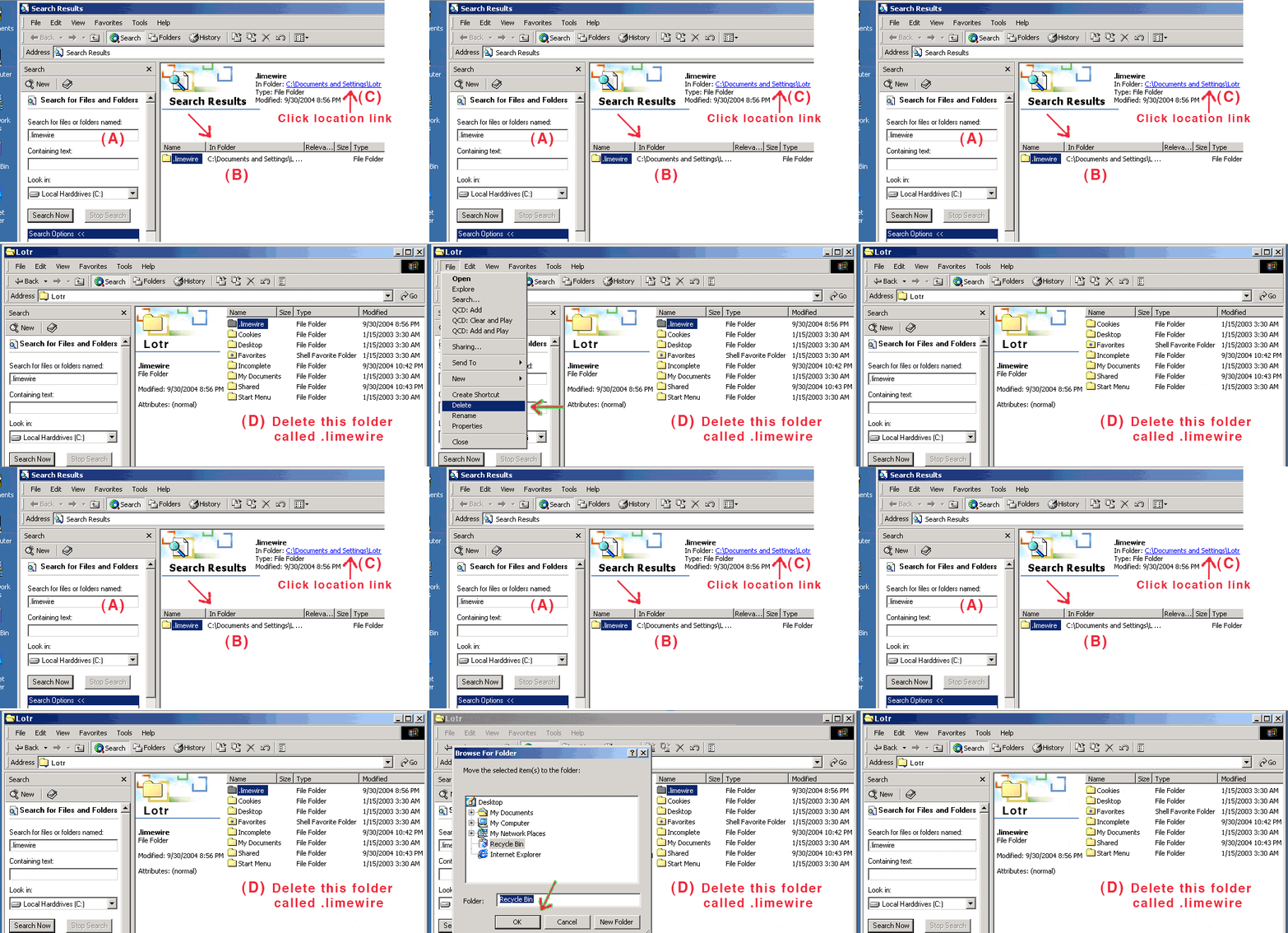 (click to see larger view of older instructions part 2) (click to see larger view of older instructions part 2). Last edited by Lord of the Rings; June 26th, 2010 at 08:05 AM. |
|
January 5th, 2006
| ||||
| ||||
| * New Location for LimeWire Preferences folder **Before you delete LW's preferences folder, please read post #5 of this thread** (but only if using LW 5 or 4.18) For LW 4.10 or later: Delete the LW Preferences folder called limewire (whilst LW is closed!) found here: C:\Documents and Settings\*yourusername*\Application Data\limewire VISTA and Windows 7 users find instructions here: LimeWire Pref Folder in Vista and Windows 7 . (Remember LW must be closed at that time!) Note: The Application Data folder is HIDDEN. In order to find & access it, you'll need to turn on the show hidden files & folders option. See sample below. New users of LW will find their preferences here. For those who have updated from an earlier version to 4.10 or later, you will find your preferences here after having deleted your preferences in the previous location discussed in Step 2 in the post at top of page! Steps: (a) Bring up search engine. (b) Change visible items to show Hidden files & folders under Tools>Options>View. (c) Search limewire. (d) Select the result & be sure it's located at \Application Data\limewire & then delete it. 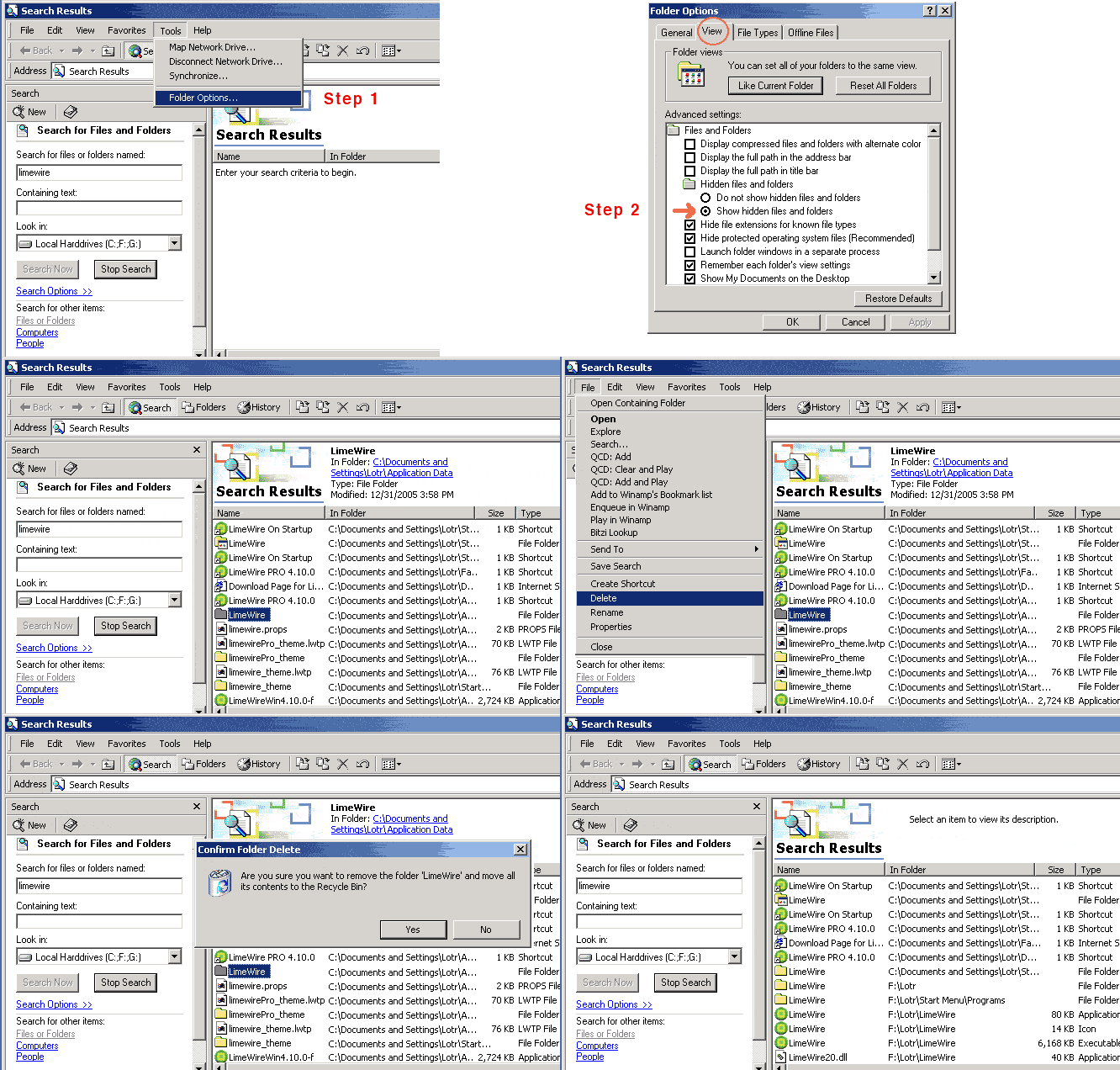 Last edited by Lord of the Rings; March 15th, 2010 at 05:22 AM. |
|
June 13th, 2009
| ||||
| ||||
| Back up your Downloads file before deleting LW's preferences folder If you have incomplete downloads that you want to save... Before deleting LW's preferences folder, you should back up your current Downloads (may be named Downloads.bak) file, which is found within the preferences folder. The Downloads file contains info about your incomplete downloads. If you delete the preferences folder & that information is lost, you won't be able to resume downloads after restarting LW. Perhaps also back up your Library5.dat/Library.dat file. 1. Navigate to LW's preferences folder named LimeWire (see posts above). Open the preferences folder & find the file named Downloads (or Downloads.bak). 2. *Copy that file. Click on thumbnail to enlarge the image. 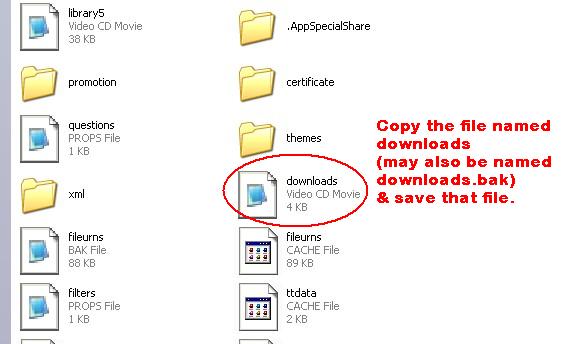 3. Close LW, make sure that it's properly closed (check in Task Manager, if there's a LimeWire process running - end the process) & then delete LW's preferences folder. 4. Start LW, go through the setup again. Run LW & go back though tools > options to reset your preferences. Close LW. 5. Make sure that LW's properly closed. Navigate back to the preferences folder & open the folder. 6. Find the file named Downloads (or Downloads.bak). You'll see that the file's only about 1KB in size. Delete that file. Leave the preferences folder open. 7. Paste the Downloads file that you copied earlier into the preferences folder which you have open. Close the preferences folder. 8. Restart LW. *If you're not too sure about copy/pasting, the best thing to do is to copy the Downloads file & then save it somewhere (eg My Documents). Then once you open LW's new preferences folder, find the file that you've saved. Copy it & paste into LW's new preferences folder. Last edited by birdy; December 7th, 2009 at 10:41 PM. |
|
| |
 LinkBacks (?)
LinkBack to this Thread: https://www.gnutellaforums.com/windows/36420-fixes-limewire-when-lw-isnt-operating-should.html | ||||
| Posted By | For | Type | Date | |
| Windows | This thread | Refback | May 20th, 2012 06:15 AM | |
| c:\Program Files\LimeWire\LimeWire.exe - MajorGeeks Support Forums | This thread | Refback | December 29th, 2010 02:20 AM | |
| Is limewire still operational? | ChaCha Answers | This thread | Refback | November 27th, 2010 06:47 AM | |
| FANforum: HTML - engine bij Limewire | This thread | Refback | November 11th, 2010 02:12 AM | |
| c:\Program Files\LimeWire\LimeWire.exe - MajorGeeks Support Forums | This thread | Refback | November 4th, 2010 02:04 AM | |
| c:\Program Files\LimeWire\LimeWire.exe - MajorGeeks Support Forums | This thread | Refback | September 20th, 2010 04:47 AM | |
| c:\Program Files\LimeWire\LimeWire.exe - MajorGeeks Support Forums | This thread | Refback | September 8th, 2010 06:47 PM | |
|
Similar Threads | ||||
| Thread | Thread Starter | Forum | Replies | Last Post |
| How to combine two operating limewire libraries | garry20 | Getting Started Using LimeWire + WireShare | 2 | October 16th, 2006 08:57 PM |
| Windows 95 operating system and Limewire | RSherwood | Windows | 0 | August 25th, 2006 10:17 AM |
| Limewire still crashing even after fixes?? | FLKat | Mac OSX | 1 | March 26th, 2006 03:08 AM |
| Tried all the fixes but no Limewire | jackiebug50 | General Mac OSX Support | 1 | February 10th, 2006 09:04 PM |
| operating Limewire on a LAN network | bunjin | General Mac OSX Support | 0 | January 20th, 2002 09:59 PM |


 Linear Mode


