
|
|
|||||||
| Register | FAQ | The Twelve Commandments | Members List | Find the Best VPN | Today's Posts | Search |
| Mac OSX Problems with installing LimeWire or WireShare for Mac OSX users |
 |
|
|
Thread Tools | Display Modes |
|
#1
 February 2nd, 2006
|
||||
|
||||
 Mac OSX 10.4/5/6 Tiger/Leopard/Snow Leopard Firewall instructions
OS X FIREWALL (standard instructions):
Leopard OSX 10.5 users see post 2 below this post. Snow Leopard OSX 10.6 users see post #3 below. To open the OS X Firewall for Gnutella access, please do the following: 1. Open up 'System Preferences' 2. In 'Internet & Network', open 'Sharing'. 3. Select the 'Firewall' tab (your Firewall should be on) 4. Select 'New...' 5. From the 'Port Name' drop down box, select 'Gnutella/LimeWire' 6. Select 'OK' 7. Restart your LimeWire application. For Mac OS 10.4 Tiger users, you'll see the firewall option for new setting is a little different to previous OSX versions. Here you'll need to add the port numbers also for both TCP & UDP instead of a single port option. The default port LimeWire uses is port 6346. Whichever port you connect through for LimeWire will need to be reflected here. * Sample Tiger Firewall instructions below for Tiger users: 1. Select firewall tab, 2. Select new, 3. Select Other, 4. Type in port number & Gnutella/Limewire, 5. Make sure this setting is ticked so it's allowed through the firewall. You may need to scroll down to the bottom of the list to find the setting. BTW the advanced settings of Stealth mode & Block UDP Traffic does not affect LimeWire's incoming requests. 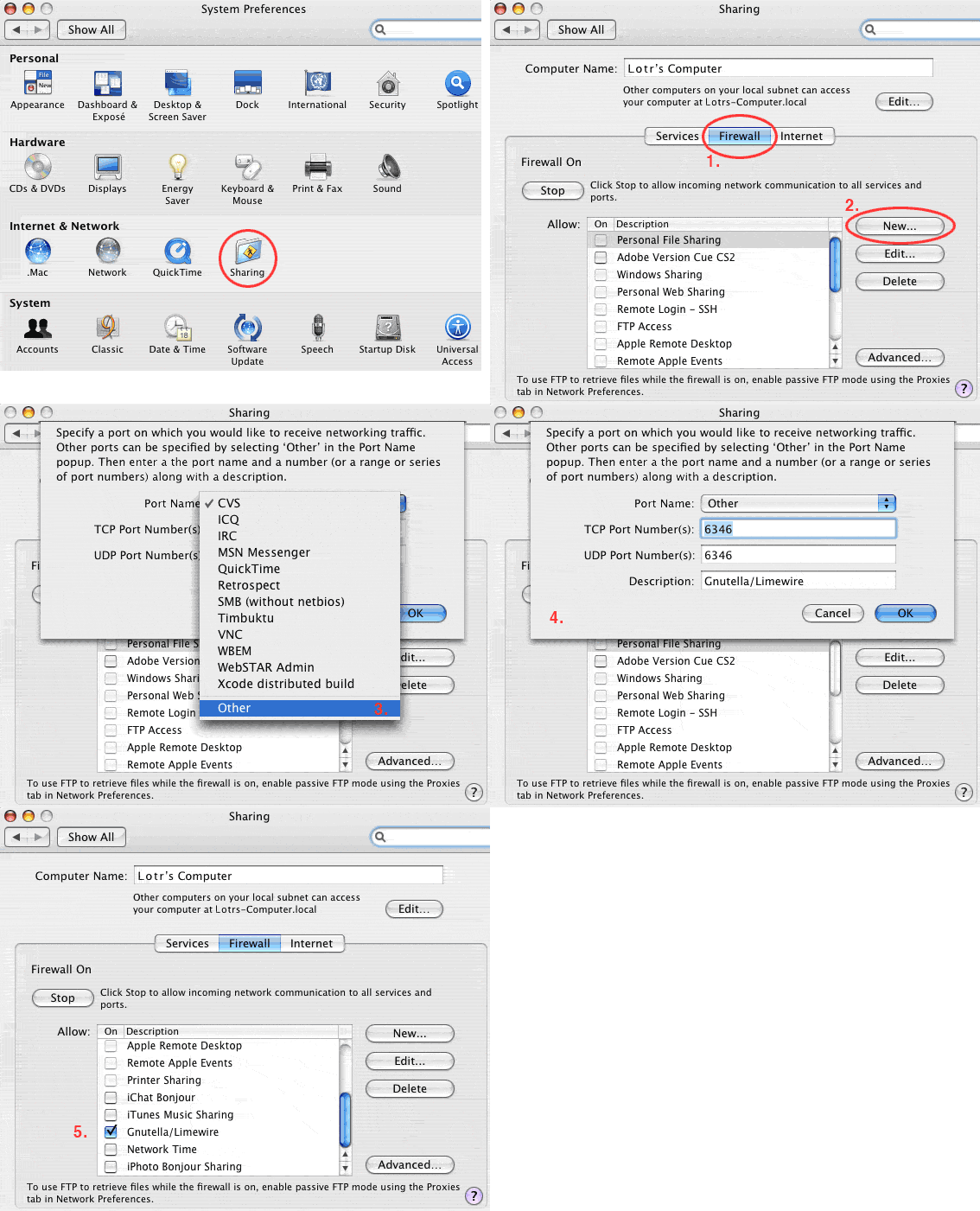
Last edited by Lord of the Rings; October 19th, 2010 at 11:28 PM. |
|
#2
June 4th, 2008
|
||||
|
||||
|
Mac OSX 10.5 Leopard Firewall Settings
For Leopard OSX 10.5 Firewall, the firewall settings has moved to Security tab in System Preferences. You have a few options for your settings. Allow Specific applications is perhaps the wisest choice. Stealth Mode should not make any difference to the use of LW. You can press the + button to add an application to the list (may need to add your Admin account password first by clicking the lock icon to allow you to change settings.)
See sample settings below: 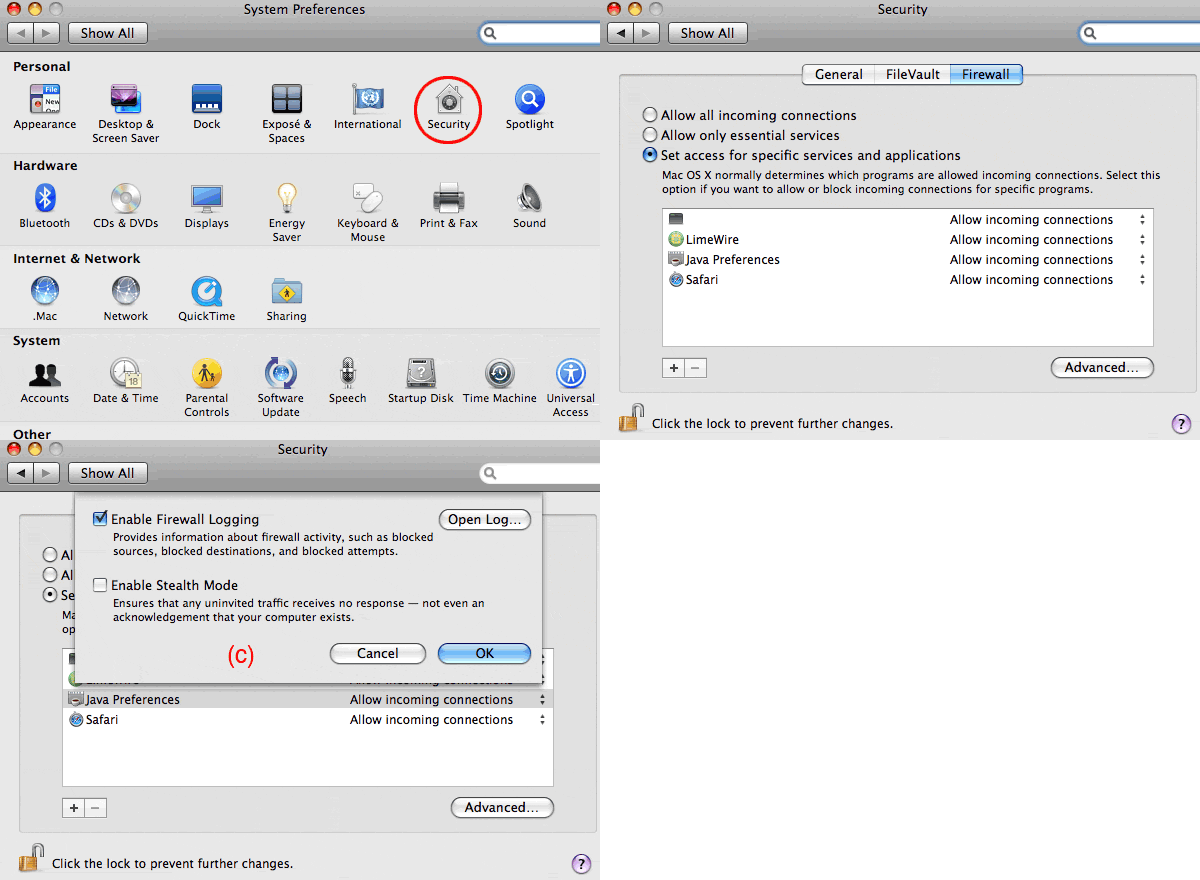 Despite the image example above, I personally set the firewall into Stealth mode! Once opening LW you may well get a few popup windows originating from the OSX system firewall, choose appropriate settings to allow LW full access.  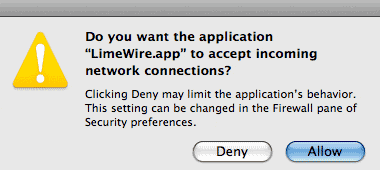 . Last edited by Lord of the Rings; June 15th, 2009 at 05:29 PM. |
|
#3
December 20th, 2009
|
||||
|
||||
|
Snow Leopard OSX 10.6 Firewall Settings
Snow Leopard OSX 10.6 Firewall Settings:
System preferences -> Security -> Firewall tab. You can then go to Advanced, and add LW to the list & make sure it is allowed incoming connections. Last edited by Lord of the Rings; October 20th, 2010 at 12:01 AM. |
|
|
|
 Similar Threads
|
||||
| Thread | Thread Starter | Forum | Replies | Last Post |
| OS X firewall instructions are wrong. | FreeStuffRules! | General Mac OSX Support | 4 | September 12th, 2007 02:00 PM |
| OSX Tiger Firewall Detected | tommy0677 | General Mac OSX Support | 18 | August 14th, 2007 08:49 PM |
| LW to iTunes-followed instructions, still need help | Camper | Getting Started Using LimeWire + WireShare | 3 | April 16th, 2007 07:29 PM |
| unable to install w/ Windows XP despite following firewall instructions | angsj | Connection Problems | 0 | December 16th, 2004 12:38 AM |
| LimeWire Community: Submitting Firewall Instructions | sdaswani | LimeWire Beta Archives | 6 | April 12th, 2004 07:29 AM |


 Linear Mode

